



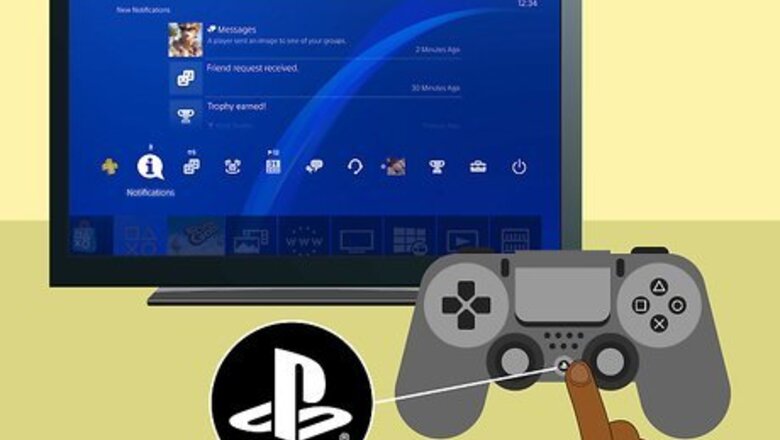


Press the PS button to bring up your profile's Dashboard page.

Use the left analog stick to select the TV & Video tile. The exact location of the tile varies depending on the games and apps that are currently installed on your console.
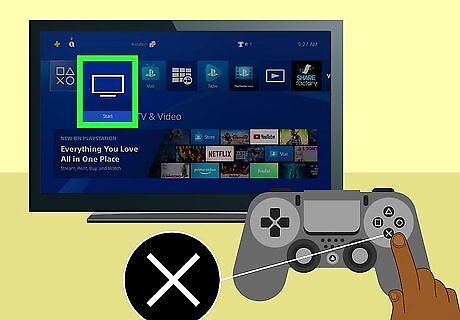
Press ✕. This opens the TV & Video tile.
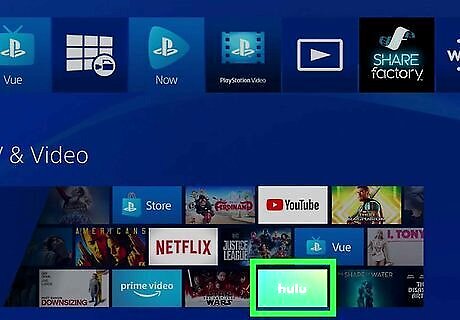
Select the green tile labeled Hulu and press ✕. This launches the Hulu app and brings you to the "Who's watching?" screen.

Select your username and press ✕. This launches the current Hulu account.
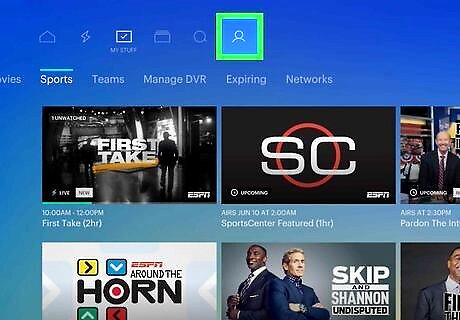
Select your username. This option is the last option in the very top row of the page and displays a small silhouette of a person's head and shoulders above your name.
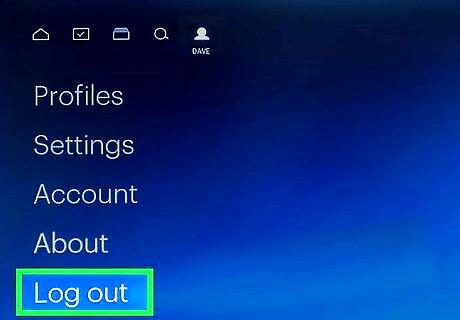
Scroll down to select Log Out and press ✕. This brings you to a confirmation screen.
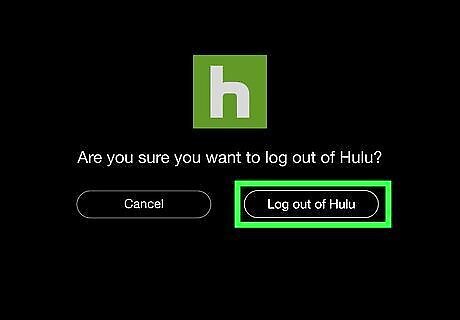
Select Log out of Hulu and press ✕. This logs the current user out of the Hulu app.
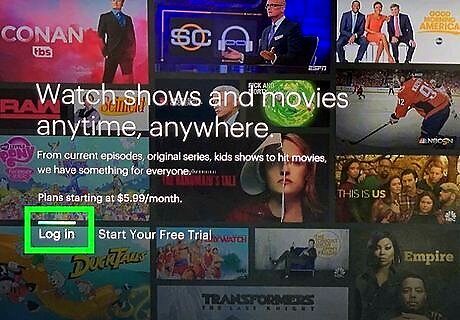
Press ✕ again to select Log In.
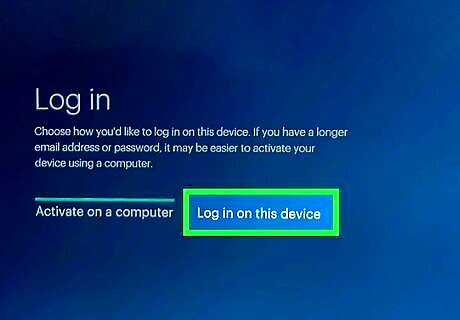
Highlight Log in on this device and press ✕. If you have access to a computer that's logged in to Hulu, you can select the Activate on a computer option instead. By selecting this option, you can visit hulu.com/activate and enter the code generated by the PS4 app. This can be slightly faster than entering your login information in the traditional way.
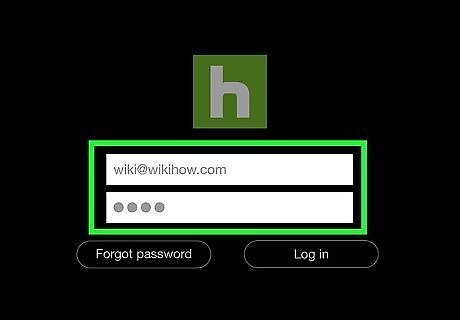
Enter the login information for a second Hulu account.
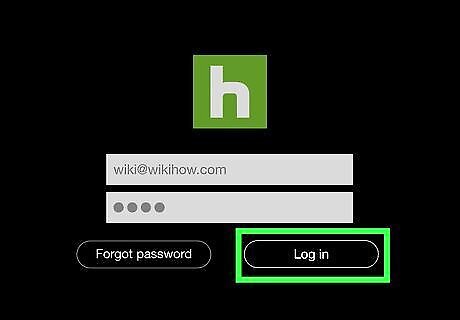
Highlight Log In and press ✕. The Hulu account on your PS4 is changed.









Comments
0 comment